AIRBUS A320 · MCDU · ND · WXR
A320 MCDU Trainer
Program the A320 MCDU, watch the flight on the Navigation Display and learn to read the weather radar. Then fly the route and see the waypoints sequence.
v1.3 · Android 7.0+ tablet or phone · Windows 10 / 11 PC (64-bit)
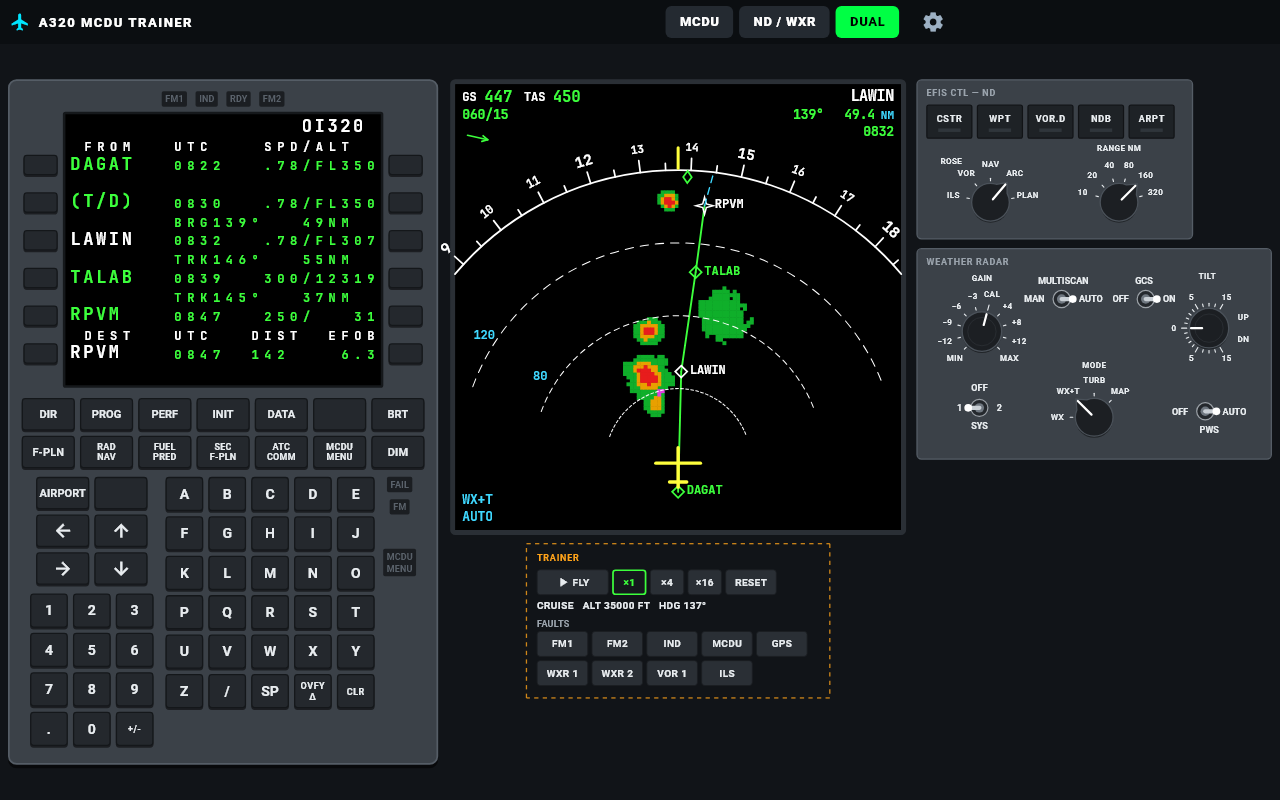
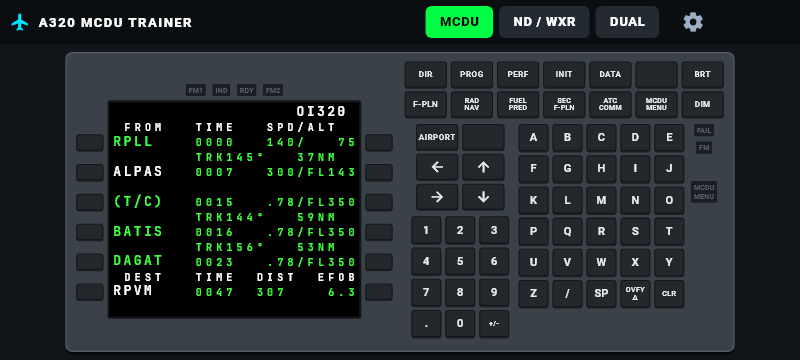
MCDU like the aircraft
14-line display with the Airbus colour code, line select keys, scratchpad and CLR logic, and real messages such as NOT ALLOWED and FORMAT ERROR.
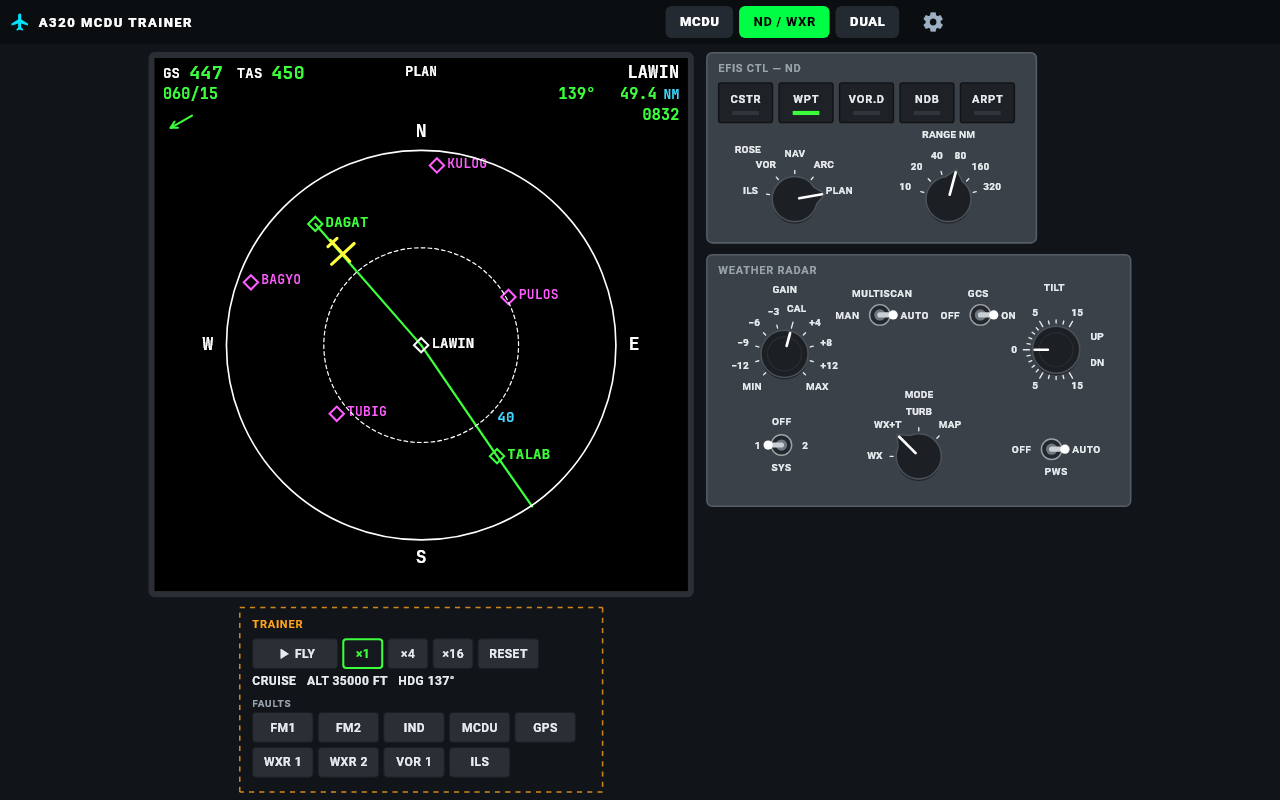
Navigation Display
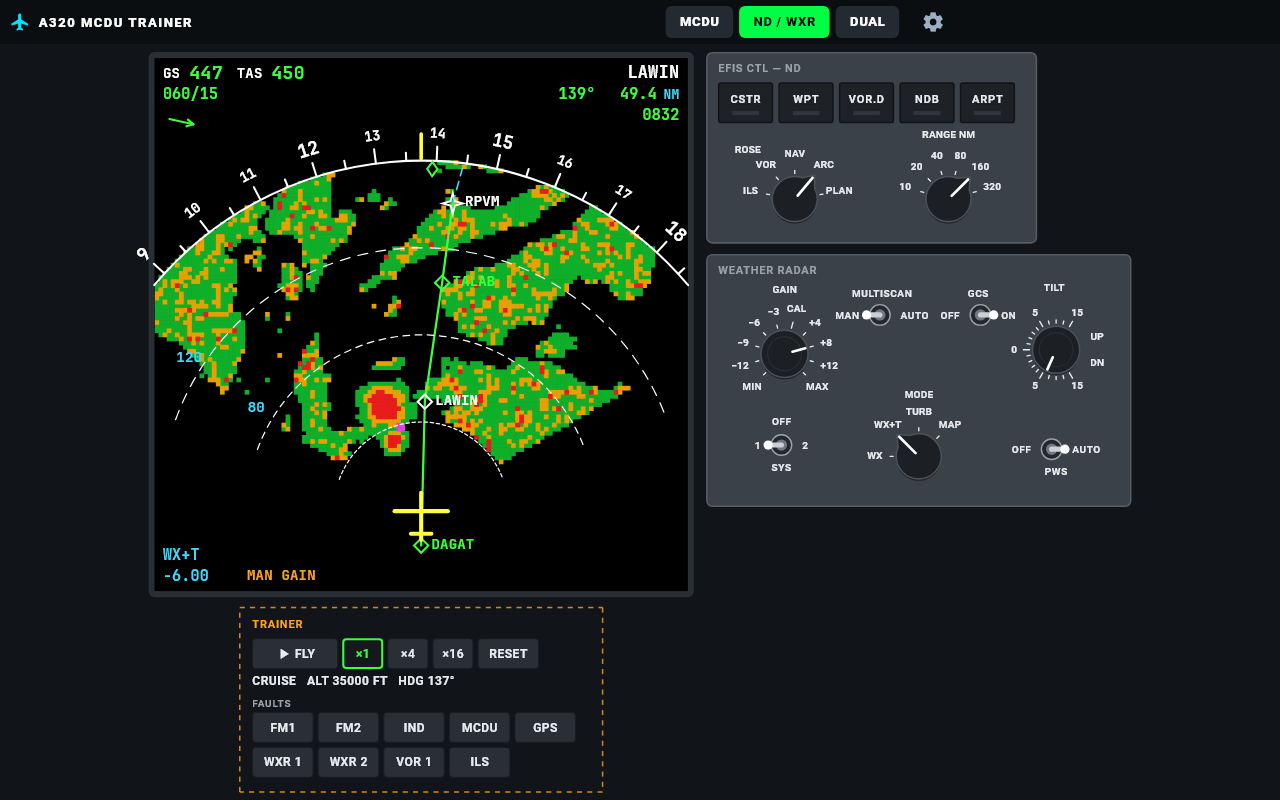
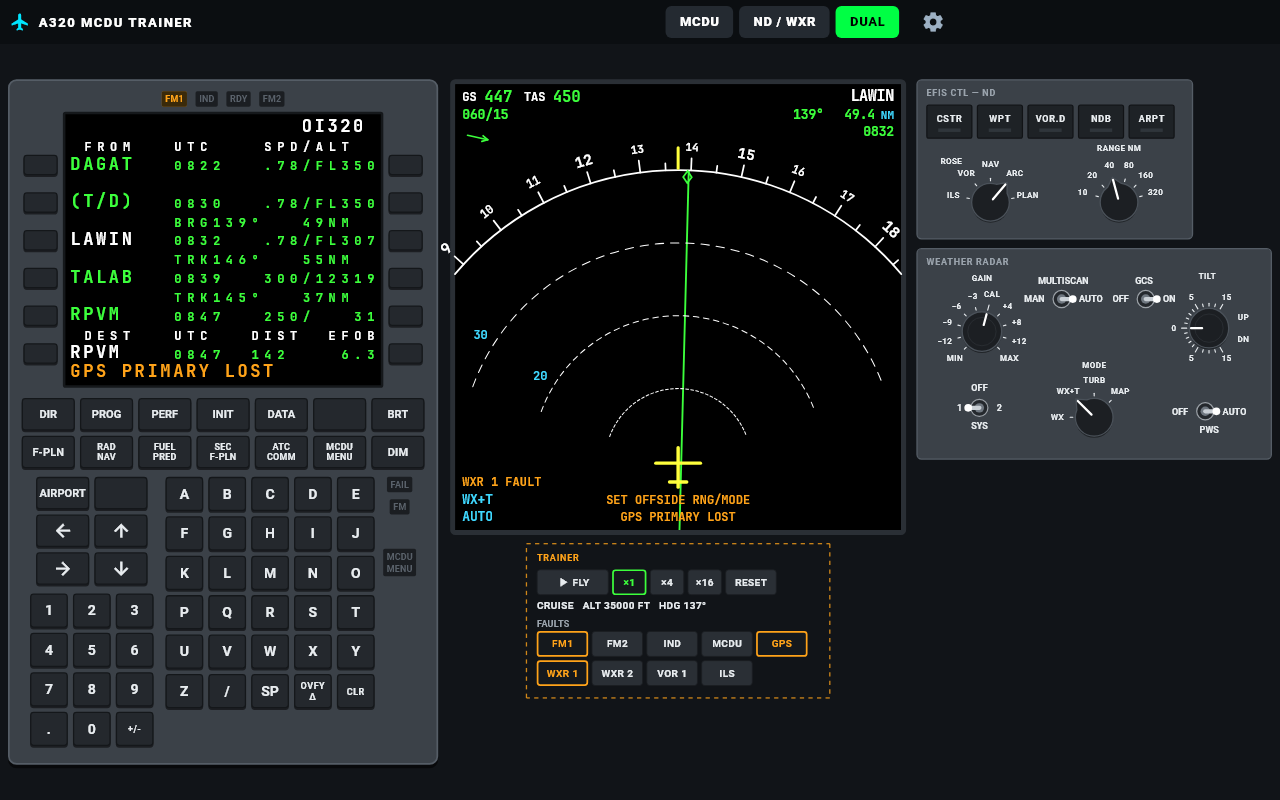
Mode and range selectors as on the EFIS panel: ROSE ILS / VOR / NAV, ARC and PLAN, 10 to 320 NM, CSTR / WPT / VOR.D / NDB / ARPT, and the temporary flight plan in yellow.
Weather radar
MultiScan panel laid out as in the cockpit: GAIN and TILT knobs, the MODE selector (WX, WX+T, TURB, MAP) and the SYS, MULTISCAN, GCS and PWS switches. A high tilt overshoots the storm; a low tilt paints the ground.
TRAINER
Press FLY to fly your flight plan from Manila (RPLL) to Cebu (RPVM) at ×1, ×4 or ×16 speed. Waypoints sequence on the F-PLN page, a discontinuity stops managed navigation, and RESET brings the aircraft back to the gate. Dashed boxes mark controls that exist only in the trainer.
FAULTS lets the instructor fail a system: FM1 or FM2 (single FMGC, PLEASE WAIT after the reset), IND, MCDU FAIL, GPS (GPS PRIMARY LOST, NAV ACCUR DOWNGRAD on the approach), weather radar system 1 or 2, VOR 1 and ILS.
TUTORIAL
Set up a flight, fly it, read the radar
A seven-minute walk-through: INIT A and B, the flight plan, constraints and discontinuities, the temporary flight plan, take-off speeds, ND modes, the weather radar, DIR TO and the trainer faults.
Instructor Guide (PDF)
34 pages for the instructor: classroom set-up, knobs and switches, license codes, quick reference, eight lesson plans with answer keys (including system faults), and an assessment checklist.
Feature Sources & A320 Conformance (PDF)
Where every feature comes from and how it compares with the real A320 MCDU, ND and weather radar, with the sources used.
MCDU PAGES
The pages a student uses first
White is for titles and prompts, blue for data you can change, green for active data, amber boxes for required entries, magenta for constraints and yellow for a temporary flight plan.
FROM/TO, company route, ALTN, flight number, cost index, CRZ FL, weights and fuel.
Insert and clear waypoints, discontinuities, speed and altitude constraints, (T/C) and (T/D).
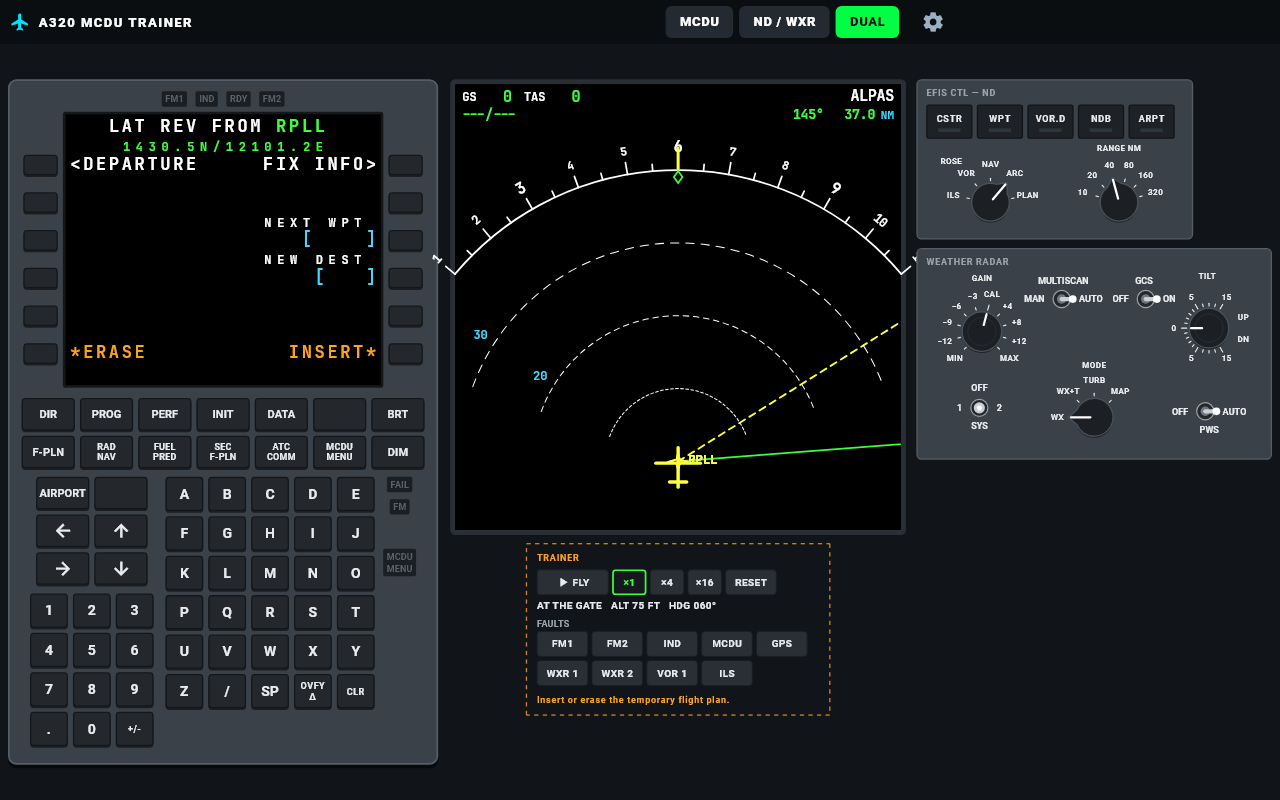
NEXT WPT and NEW DEST with a yellow TMPY plan: *ERASE or INSERT*.
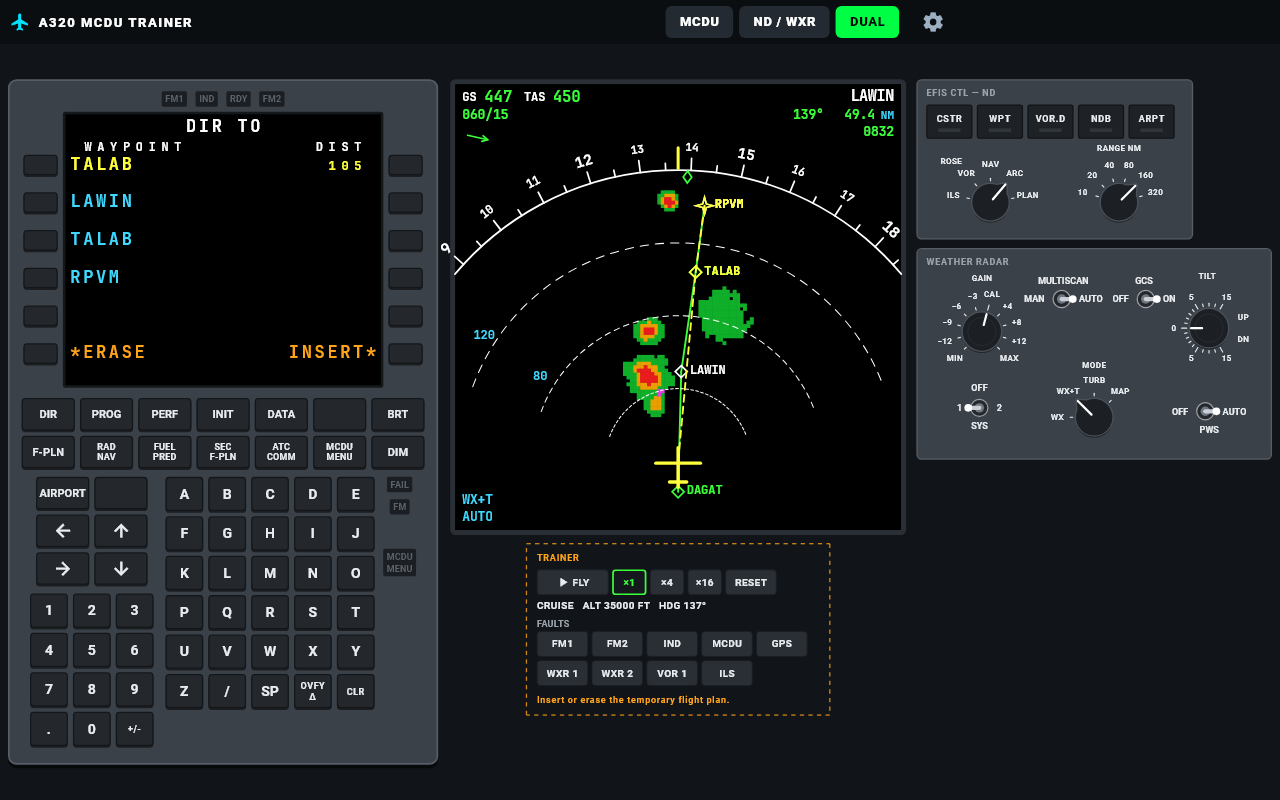
Direct to any point from the present position, then INSERT.
TAKE OFF V1 / VR / V2 with the disagree check, FLAPS/THS, FLEX, then CLB, CRZ, DES and APPR.
Cruise level, optimum and maximum level, bearing and distance to any point.
VOR, ILS and ADF by identifier or frequency, with course.
Fuel at destination and alternate, extra fuel, position monitor, aircraft status.
License code required
The first time the app opens, enter your license code (for example MCDU-k7Rm9Qx2), exactly as given: capital and small letters matter. Activation needs an internet connection once. Each code works on one device only. A320 FAP codes do not work in this app. Ask your instructor for a code.
New device? On the old one tap ⚙ Settings, then Deactivate & Transfer License, then enter the same code on the new one.
No code yet? Try the free demo with code MCDU-DEMO (no internet needed): the INIT and F-PLN pages and the Navigation Display.
Android APK · v1.3
DOWNLOAD
Scan to install on your device
- 1Scan the QR code with the tablet or phone camera, or tap Download APK.
- 2Allow "Install unknown apps" for your browser when Android asks.
- 3Open the app, enter your license code (internet needed once), and hold the device in landscape.
WINDOWS
Install on a Windows PC
- 1Download the Setup and open it.
- 2If Windows shows "Windows protected your PC", click More info, then Run anyway.
- 3Follow the Setup (Next, accept the notice, Install). A desktop shortcut is created.
- 4Open A320 MCDU Trainer and enter your license code (internet needed once). On a PC you can type on the MCDU with the computer keyboard.
IMPORTANT NOTICE & DISCLAIMER
This software (A320 MCDU Trainer) is developed by Overdrive Interactive for academic, familiarization, and educational training purposes only.
- 1.NOT AN OFFICIALLY CERTIFIED FTD: This application is a classroom supplement and is NOT certified by Airbus, FAA, EASA, CAAP, or any civil aviation authority for official type-rating or flight training credits.
- 2.NO AFFILIATION: "A320" and related aircraft trademarks belong to Airbus. Overdrive Interactive is an independent entity with no official endorsement or affiliation with Airbus.
- 3.TRAINING DATA ONLY: All waypoints, navaids, frequencies, weather and performance figures are simplified or fictional training data. Airport positions are approximate. Never use them for flight planning or navigation.
- 4.ACCURACY & LIABILITY: While modeled for realistic interaction, operational variances may exist. This software must NOT be used for real-world aircraft operation or flight preparation. Overdrive Interactive assumes no liability for misuse.